
 (Version: V3.50)
DOC to Image Converter Pro is the fast, easiest way to convert word DOC, RTF to professional-quality JPEG/JPG/TIFF/BMP/EPS/PS/PNG/PCX files file format . Its easy-to-use interface allows you to create JPEG/JPG/TIFF/BMP/EPS/PS/PNG/PCX files by simply few clicks, creating documents which can be viewed on any computer with a Image viewer.
 Version 3.50
 only
$59.95
only
$59.95
To perform batch conversion or call conversion procedure from an automation script, you can use command line function in DOC to Image Converter Pro, You can either run this tool directly from command line or call it from any script as well. The program supports the following command-line options:
Converting Microsoft Word documents into Jpeg/Jpg/Tiff/Bmp/Eps/Ps normal files couldn't be any easier. Simply open the DOC file you want to convert into image file and click the "Save as Image" button in the Microsoft Word toolbar, DOC to Image (Jpeg/Jpg/Tiff/Bmp/Eps/Ps) Converter quickly re-creates your DOC file as a fully formatted Jpeg/Jpg/Tiff/Bmp/Eps/Ps files.
Get the job done in seconds or minutes, not hours or days. DOC to Image (Jpeg/Jpg/Tiff/Bmp/Eps/Ps) Converter saves you both time and money.
You will be amazed at the results you get from DOC to Image (Jpeg/Jpg/Tiff/Bmp/Eps/Ps) Converter. It accurately retains the layout of the original Doc file. Converts text in over 100 languages and separates graphics from tables and text.
| Type of Document | Features Showcased | Original Word Document | Converted Image File |
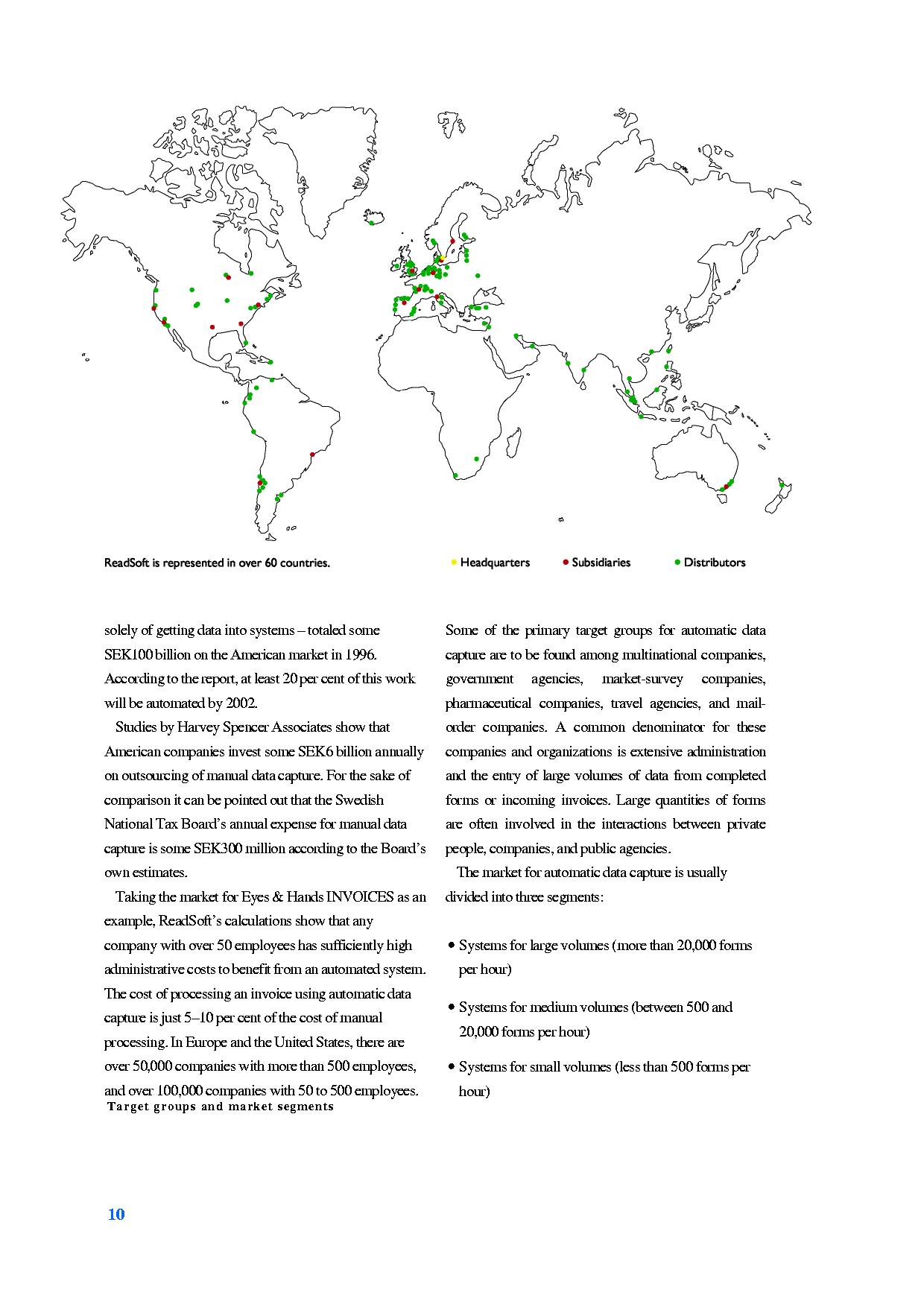
| 1 Page from a typical research report with a large graphic and columns of text. | DOC to Image (Jpeg/Jpg/Tiff/Bmp/Eps/Ps) Converter successfully identifies and separates the top graphic, and maintains the layout of the original file in Microsoft Word. | 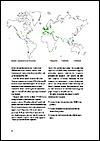 Download Word Document |
 Download Image File |
| 1 page from a typical financial report, with a column of graphics and column of text. | DOC to Image (Jpeg/Jpg/Tiff/Bmp/Eps/Ps) Converter not only separates the column of text from the column of graphics, it also correctly splits the column of graphics into their separate chart components. It also detects and separates captions. | 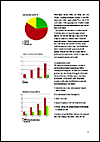 Download Word Document |
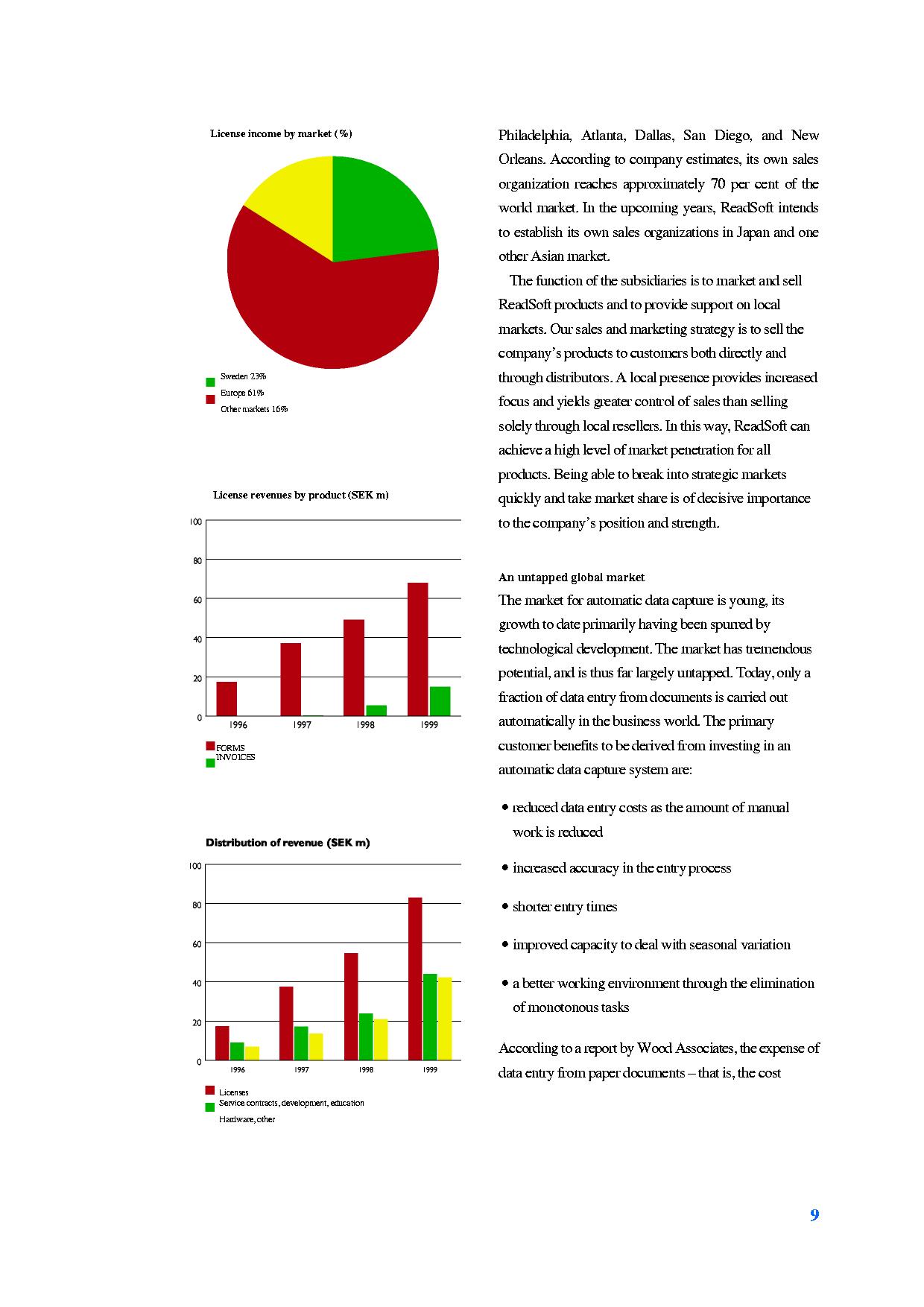 Download Image File |

DOC to Image Converter is the fast, easiest way to convert word DOC, Docx to professional-quality JPG/Tiff/Bmp/Eps/Ps file format
Price: $38.00

PDF to Image Converter is a batch image converter that convert PDF documents to image(JPG/TIFF/Bmp/Eps/Ps).
Price: $49.95

We want you to be 100% satisfied, so we offer an unconditional 30 Day Money Back Guarantee.

All products are free to upgrade. Just download the latest version at the web page, your license code will be available forever!